(continued from Historical Reports)
RM Monitor v 1.3 now offers the capability of downloading any report available in the RM Report in a PDF format. This added capability allows the end user to view up to the minute data offered in the powerful report module to make precise and critical business decision. The PDF Reports function requires an RM version 17 build dated 17.0.2010.03110 or later and RMAlertd (exe) dated 3/11/10 or later. Some additional setup is required and is covered in the section Upgrading RM Monitor for PDF Reports. PDF reports must be set up in the RM Report module. After setup, you will be amazed by the ease to retrieve the pre-configured reports.
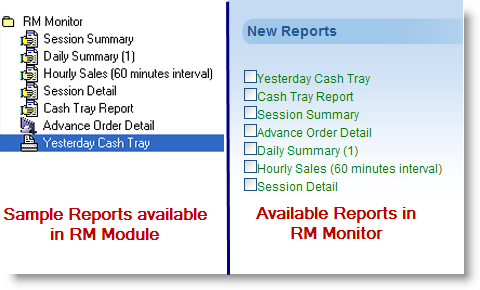
Reports to be displayed on the PDF Report list must be configured in the RM Report Module of the host computer (at store location). Reports cannot be added from the RM Monitor interface. When first installed or upgraded, by default, a “RM Monitor” folder is created. In this folder you can add or delete reports for the folder using standard report procedures. More information on creating report groups can be found in the document: RM Reports Guide. Note that report specific filters do not have to be entered if retrieving data for the current session. RM Monitor will intuitively fill in the filter and convert the selected reports to a PDF format when the “View” command is used from RM Monitor. Report filters are only needed when data from previous sessions or date are required.
Reports will be added to all viewing devices at next login or when the system “Update” option is implemented.
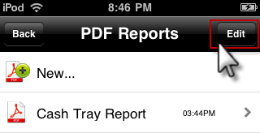
Once in the stores default data screen, select the “PDFReports” option found in the default report list, The PDF Reports default screen differs depending which device you are using. The following sections will detail how you can view, update and change the default PDF Reports shown using both mobile and desktop options.
With RM Monitor you can adjust the default reports shown on a mobile device by adding or deleting the reports made available with the RM Report Module.
Note: Refreshing or Adding reports will cause some activity (brief) on the host computer while the RM repot Modules generates reports.
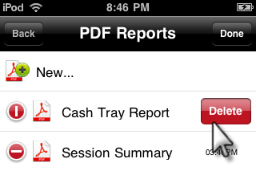
You can delete default reports using the following steps:
 symbol next to the report name. The symbol should change to ;
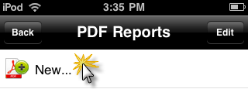
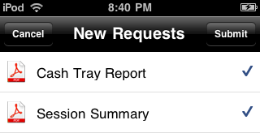
Occasionally the need may arise to add PDF reports to the default PDF Report screen. Perhaps you have added reports in the RM Monitor folder in the RM Reports or you want to add previously deleted reports. Regardless the reason, adding reports is a simple process using the following steps:
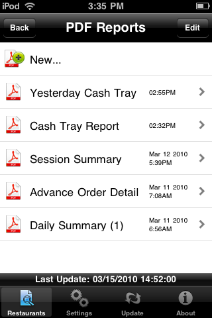
Current available reports are listed in order of last refreshed. Each row list the report name in addition to the time and date the report was last refreshed.
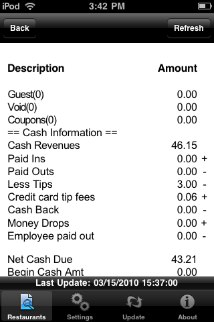
You can view the report by using the greater than (>) image on the report row. Pictured below is a sample Cash Tray report:
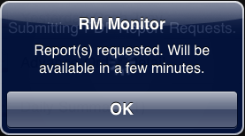
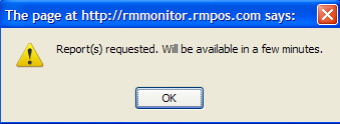
From the report viewing screen you can view or refresh (update) the report. The “Refresh” button on the top of the report view screen is used to update the report. Immediately after the using the “Refresh” button in the upper right corner of the viewing screen you will receive the following message:
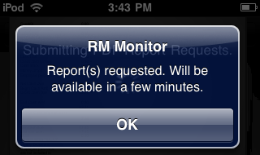
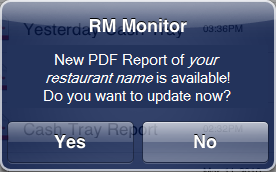
The I phone / IPod Touch device will automatically push the information and send the following message when the report has been updated:
With RM Monitor you can adjust the default reports shown for viewing on a desktop computer by adding or deleting the reports.
Note: Refreshing or Adding reports will cause some activity (brief) on the host computer while the RM repot Modules generates reports.
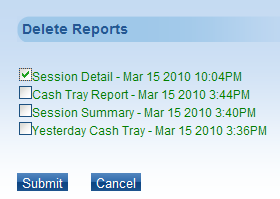
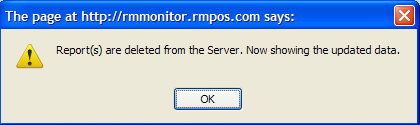
You can delete default reports using the following steps:
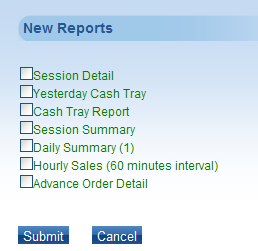
Occasionally the need may arise to add PDF reports to the default PDF Report screen. Perhaps you have added reports in the RM Monitor folder in the RM Reports or you want to add previously deleted reports. Regardless the reason, adding reports is a simple process using the following steps:
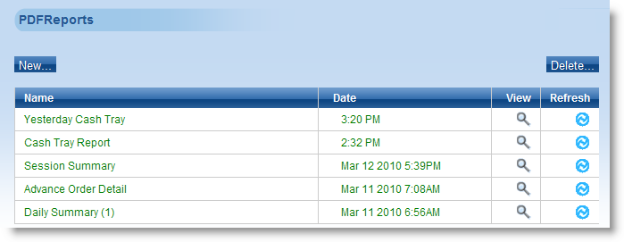
Viewing PDF reports in RM Monitor is accomplished by using the report grid. The two active areas are the cells found under the View and Refresh Columns. The cells under the Name and Date columns are both static. The report grid is broken down into four columns.
Name- this column list all the current available reports
Date- lists the last time and date the report on the corresponding row was run (viewed) or refreshed. The date will not appear on reports run on the current day.
View- Press the icon in the grid cell to view the corresponding report. The report will show data from the last time shown in the date column.
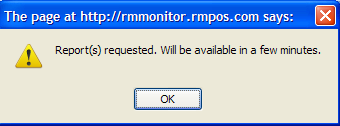
Refresh- Pressing the icon in the grid cell associated with a report to update the report with up to date information. After pressing this option, you will receive the message pictured below on screen:
Once the “refresh” process is complete you may view the report. Refresh times may vary depending on bandwidth. You will have to use the RM Monitor system “Refresh” function to update the screen with the current time before viewing the report.
Sample Desktop Report Grid
Note: Reports are listed in the order they are last refreshed.